Automating vSphere VLAN Validation — A Complete Toolset
The Problem
Anyone who has spent time managing VMware vSphere environments knows the pain of VLAN validation. You’ve just rolled out a new set of port groups, migrated a batch of VMs, or made changes to your distributed switch configuration — and now you need to verify that each VLAN actually works end-to-end.
The traditional approach goes something like this: pick a VM, manually edit its network adapter in vCenter, SSH in, set a static IP, ping the gateway, maybe test DNS, then repeat for the next VLAN. With three VLANs it’s tedious. With fifteen it’s a full afternoon of clicking, typos, and forgotten test results. And when something doesn’t work, you’re left wondering whether the fault is in vCenter, the vSwitch, the physical uplink, the routing, or the IP configuration itself.
There’s another problem: repeatability. A manual test performed by one engineer on a Tuesday tells you very little about whether the same VLAN still works after a change was made on Friday. Without a consistent, documented test baseline, validation becomes guesswork.
vlan-test.sh was built to solve this. It runs a consistent, automated battery of network tests across every VLAN you define, drives both vCenter and the local network stack programmatically, and produces a timestamped report you can compare across runs.
Over time the project grew into a small toolset: a PowerCLI script to pull port group and NSX segment data directly from your environment, and a browser-based config builder to turn that data into a ready-to-paste config block — no manual typing of port group names required.
The Toolset
The project consists of three components that work together:
vlan-test.sh
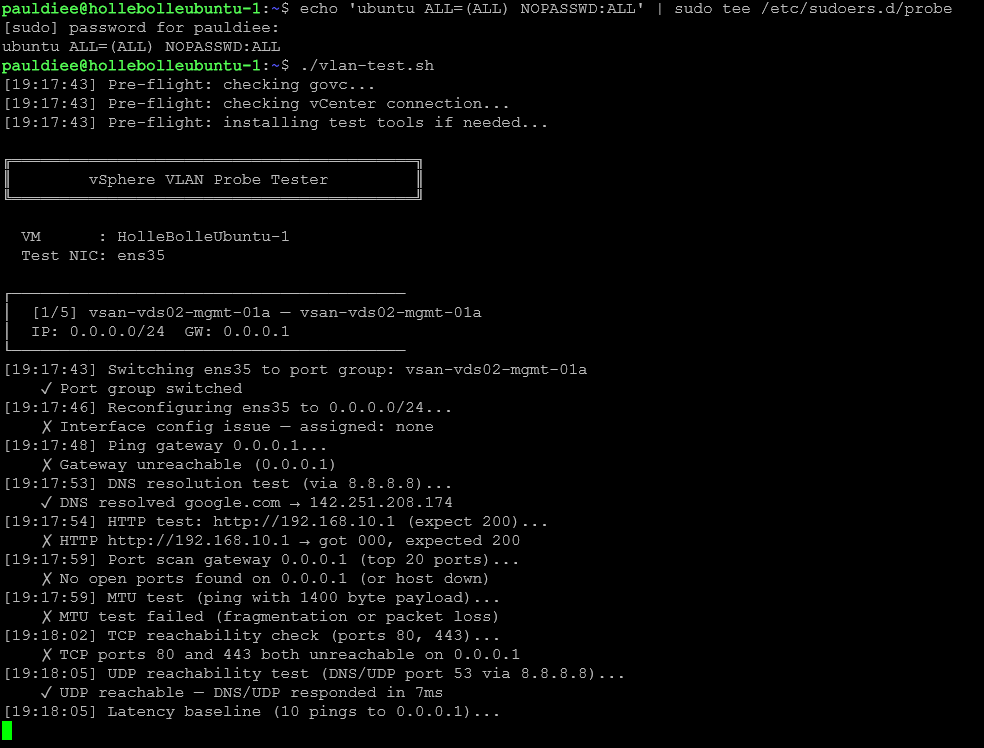
The core test script. Runs locally on a dedicated Ubuntu probe VM, uses govc to rotate the test NIC between port groups, and runs an 11-test battery for each VLAN. Outputs a JSON result file and an interactive HTML report.
Get-PortGroupData.ps1
A PowerCLI script that connects to vCenter and optionally NSX Manager and exports all port groups and segments to a portgroups.json file. On first run it prompts for credentials interactively and saves them encrypted via Windows DPAPI for subsequent runs. You can also pass -Source vCenter, -Source NSX, or -Source Both to skip the prompt entirely — useful for scripted or scheduled runs.
vlan-config-builder.html
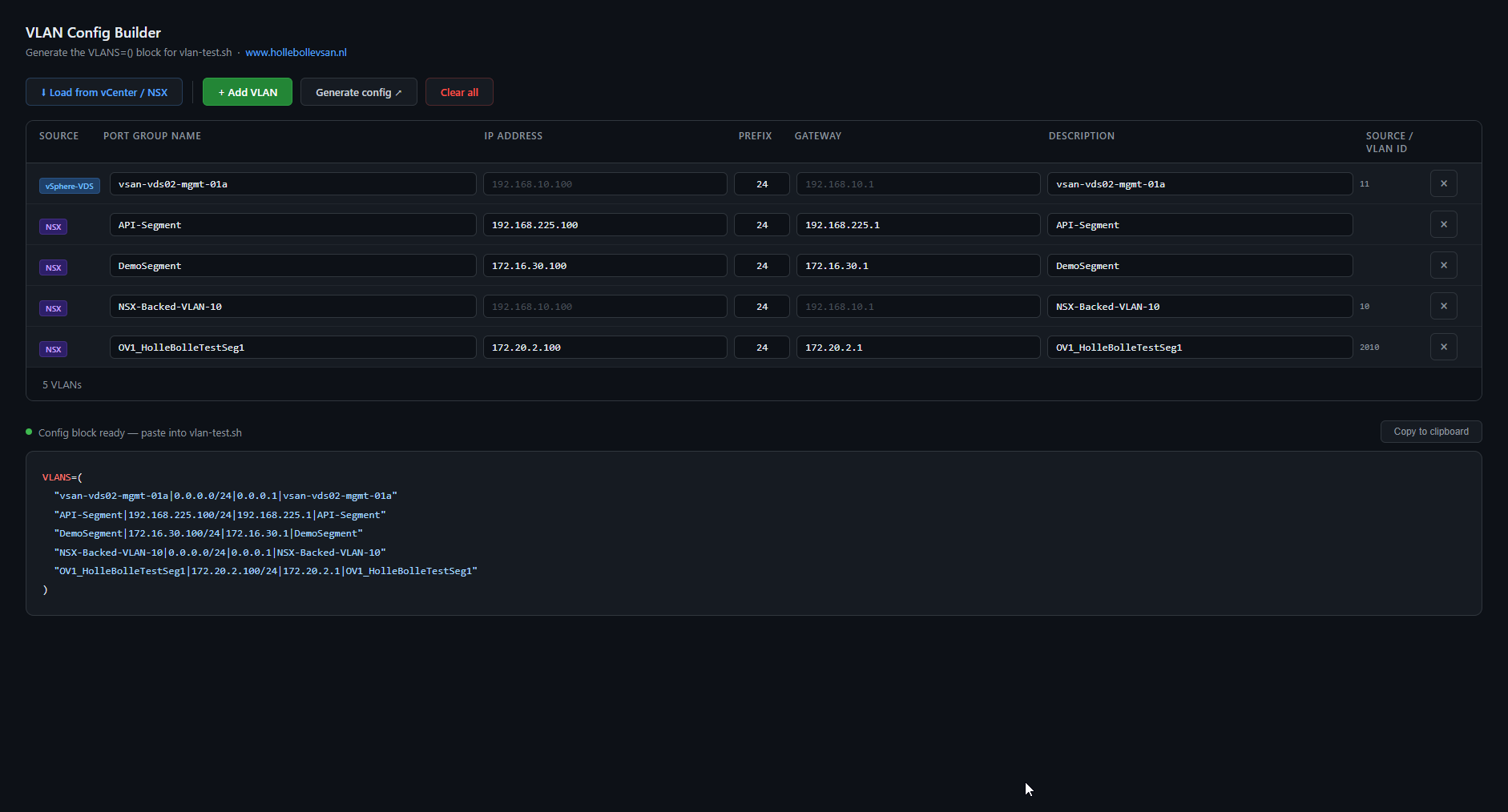
A standalone browser tool for building the VLANS=() config block that vlan-test.sh needs. Supports manual entry with live IP validation, and can import from portgroups.json via a selection modal. On import it automatically derives the probe IP from the subnet, strips the prefix from the gateway address, and uses the port group name as a description fallback. No server required — just open it in a browser.
Architecture
The Two-NIC Probe VM
The tool uses a dedicated Ubuntu VM as a network probe. The key design decision is that the VM has two network adapters:
- Management NIC (
ens160) — configured before the script runs, either via DHCP or a static IP set in Netplan. This NIC never changes during the test run. It provides the stable terminal session you’re working from. - Test NIC (
ens192) — left completely unconfigured in Netplan. The script takes full ownership of this interface, rotating it between port groups and re-IPing it for each VLAN under test.
This separation is what makes unattended automation possible. Without it, switching the port group of your only NIC would terminate your own terminal session mid-run.
How the Script Drives vCenter
The script uses govc, VMware’s official CLI for the vSphere API. For each VLAN it calls:
govc vm.network.change -vm "ubuntu-probe" -net "PG-VLAN10" ethernet-1
This moves the test NIC to the target port group at the vCenter level — the same operation you’d perform in the vCenter UI under Edit Settings. No vCenter UI interaction required.
Local Network Reconfiguration
Once the port group is switched, the script reconfigures the test interface directly using standard Linux ip commands:
sudo ip link set ens192 down && sudo ip link set ens192 up
sudo ip addr flush dev ens192
sudo ip addr add 192.168.10.100/24 dev ens192
sudo ip route add 192.168.10.1 dev ens192
Importantly, the script only adds a host route to the gateway — it never flushes or replaces the global default route. This is a critical detail: an earlier version used ip route flush default which wiped the management NIC’s routing, knocking out the terminal session. The current approach keeps the management NIC’s routing completely untouched.
Binding Tests to the Test NIC
A subtler problem: even with correct interface configuration, test commands like ping, curl, dig, and nc will follow the system’s default route unless told otherwise — meaning they would silently go out the management NIC and give false results.
The script solves this by extracting the source IP after assigning the address, then binding every test command explicitly:
SRC_IP=$(echo "$IP" | cut -d'/' -f1) # strips prefix: 192.168.10.100/24 → 192.168.10.100
| Command | Binding flag |
|---|---|
ping | -I $IFACE |
curl | --interface $IFACE |
dig | -b $SRC_IP |
nc | -s $SRC_IP |
nmap | -e $IFACE -S $SRC_IP |
This guarantees every test result reflects what is actually happening on the VLAN under test, not on the management network.
Output
After each run the script produces two files in a vlan-reports/ directory:
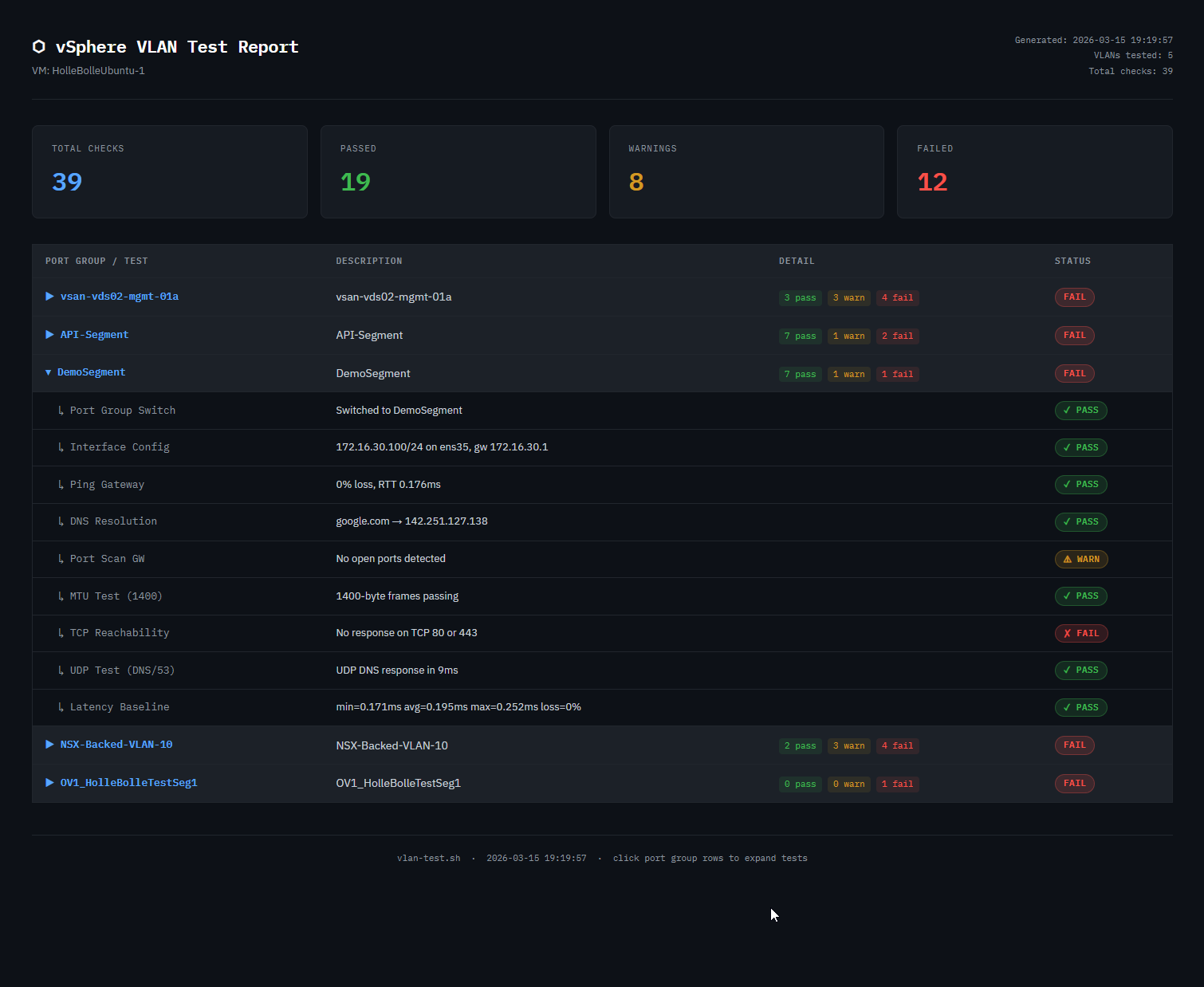
results_TIMESTAMP.json— machine-readable array of every test result, suitable for ingestion into monitoring pipelines or diff toolsreport_TIMESTAMP.html— a dark-themed interactive HTML report with a summary scorecard and expandable per-VLAN test rows
The Test Battery
For every VLAN in the configuration, the script runs eleven tests in sequence. Every test is explicitly bound to the test NIC — none of them will accidentally route via the management NIC. If the port group switch fails, the remaining tests for that VLAN are skipped and the script moves on.
1. Port Group Switch
Uses govc to move the test NIC to the target port group. A failure here indicates a vCenter connectivity issue, a permissions problem, or a port group name mismatch.
2. Interface Configuration
Assigns the configured IP and sets up the gateway host route. Verifies the address was actually assigned by reading it back from the interface. A mismatch here usually means a kernel or driver issue.
3. Ping Gateway (ICMP)
Four ICMP packets to the gateway, bound to the test NIC with -I $IFACE. Records RTT and packet loss. Partial loss is reported as a warning rather than a hard failure since some environments rate-limit ICMP.
4. Ping Extra Hosts
Optional per-VLAN list of additional hosts to ping beyond the gateway, also bound to the test NIC with -I $IFACE. Useful for verifying that specific servers are reachable on each segment.
5. DNS Resolution
Queries a configurable DNS server for a hostname using dig -b $SRC_IP, sourcing the query from the test NIC’s IP. Forces UDP transport. A failure here can indicate either a routing problem on this VLAN or a firewall blocking DNS traffic.
6. HTTP Check
Uses curl --interface $IFACE to fetch a URL bound to the test NIC and validates the HTTP response code. Configured per-VLAN so you can test the specific service that should be reachable from each segment.
7. Port Scan (TCP)
Runs nmap -e $IFACE -S $SRC_IP against the gateway’s top 20 TCP ports, bound to both the test NIC interface and source IP. The goal is not a full security audit but a quick sanity check that the gateway is responding on TCP at all. No open ports is reported as a warning since some gateways block everything except routing traffic.
8. MTU Test
Sends a 1400-byte ping with the Don’t Fragment bit set, bound to the test NIC with -I $IFACE. This is a conservative test — well below the standard 1500-byte Ethernet MTU — that catches misconfigured MTU settings on vSwitches, physical NICs, or upstream switches without triggering legitimate fragmentation.
9. TCP Reachability vs ICMP
Attempts TCP connections on ports 80 and 443 using nc -s $SRC_IP, sourced from the test NIC IP. This is run as a complement to the ICMP ping: if ICMP fails but TCP succeeds, the gateway is reachable but filtering ping traffic. This distinction matters for diagnosing failures accurately — a VLAN that looks dead on ping may be perfectly functional for actual application traffic.
10. UDP Test
Forces a DNS query over UDP only (dig -b $SRC_IP +notcp), sourced from the test NIC IP. All other tests in the battery use TCP or ICMP. A VLAN that passes all TCP tests but fails this one is likely blocking UDP at the firewall or ACL level — a common misconfiguration that breaks VoIP, NTP, DHCP, and other UDP-dependent services silently.
11. Latency Baseline
Ten rapid pings (-I $IFACE -i 0.2) bound to the test NIC to build a min/avg/max RTT profile. The average is compared against a configurable threshold (LATENCY_WARN_MS, default 50ms). The value of this test is comparative: run it after a network change and compare against the previous report. A VLAN whose average latency has jumped significantly likely has a routing or switching issue even if all connectivity tests pass.
Configuration in 60 Seconds
The easiest way to build your VLAN list is to run Get-PortGroupData.ps1 on a Windows machine with PowerCLI, then load the resulting portgroups.json into vlan-config-builder.html. Select the port groups you want to test, fill in any missing IPs, and copy the generated block straight into the script.
All other configuration lives at the top of vlan-test.sh. The minimum you need to change for a new environment:
# vCenter connection
export GOVC_URL="https://vcenter.yourdomain.local"
export GOVC_USERNAME="administrator@vsphere.local"
export GOVC_PASSWORD='yourpassword'   # single quotes required for special characters
export GOVC_INSECURE=1

# VM and NIC
VM_NAME="ubuntu-probe"
IFACE="ens192"

# VLANs to test
VLANS=(
  "PG-VLAN10|192.168.10.100/24|192.168.10.1|Server VLAN"
  "PG-VLAN20|192.168.20.100/24|192.168.20.1|User VLAN"
)
Each VLAN entry is a pipe-delimited string: port group name, IP with prefix, gateway, and a free-text description that appears in the report.
What’s Next
The current test battery covers the fundamentals well, but there’s plenty of room to grow. Some areas worth exploring for future versions:
- VLAN isolation testing — actively verify that traffic from one VLAN cannot reach another where it shouldn’t
- Duplicate IP detection —
arping -Dbefore assigning an IP to catch conflicts that would skew results - IPv6 support — the entire battery currently assumes IPv4
- Threshold configuration per VLAN — different latency expectations for a WAN-extended VLAN vs a local segment
The core test script remains a single self-contained Bash file. The companion tools — Get-PortGroupData.ps1 and vlan-config-builder.html — are optional but make configuration significantly faster, especially when testing a large number of VLANs. Between the three tools, you can go from a fresh Ubuntu VM to a full VLAN test run in under ten minutes.
Download the scripts and full documentation at github.com/pauldiee/vsphere-vlan-tester